Apple Reminders is a better fit for Apple-centered workflows, while Google Tasks works naturally with Google Workspace and Android. Here is how they compare.
Apple Reminders and Google Tasks cover the same basic job: record a task, give it a date, and mark it complete. The practical difference is where each one fits.
Apple Reminders is the stronger choice when most of your work happens on Apple devices and you want features such as Siri capture, location-based reminders, tags, and Smart Lists. Google Tasks makes more sense when your work starts in Gmail, Google Calendar, or other Google Workspace applications, especially if you also use Android.
Neither choice is universally better. The right one depends on the devices and applications you already use.
Apple Reminders vs Google Tasks at a Glance
| Area | Apple Reminders | Google Tasks |
|---|---|---|
| Best fit | Apple-centered personal workflows | Google Workspace and Android workflows |
| Mac experience | Native Reminders app | Google Calendar and Workspace side panels in a browser |
| Mobile apps | iPhone and iPad | Android and iPhone |
| Task capture | Reminders app, Siri, Spotlight, and the share sheet | Tasks app, Gmail, Calendar, and Workspace side panels |
| Organization | Lists, sections, tags, flags, priorities, subtasks, and Smart Lists | Lists, starred tasks, and subtasks |
| Notifications | Dates, times, early reminders, locations, and reminders when messaging someone | Date and time notifications |
| Repeating tasks | Supported | Supported |
| Shared work | Shared lists with task assignment | Assigned tasks through supported Google Workspace features |
This is not an exhaustive feature table. It highlights the differences that tend to affect the decision.
Where Apple Reminders Is Stronger
Apple Reminders feels like part of the operating system because it is. On a Mac, it has its own native application. On an iPhone, you can ask Siri to create a reminder, add one from another application's share sheet, or use location and messaging conditions that go beyond a simple due date. Apple's Reminders guide provides a useful overview of the current feature set.
The organization tools are also more developed. Apple documents support for:
- Lists and sections
- Tags and custom Smart Lists
- Flags and priorities
- Subtasks
- Repeating reminders
- Shared lists and assignments
- Grocery lists that automatically group items into categories
You do not need all of these features to benefit from Reminders. I mostly notice the difference when I want to capture something without breaking focus or when I want one view assembled from several lists.
For example, a tag can group related reminders without moving them into the same list. A Smart List can then collect tasks based on tags, dates, flags, locations, or other filters. That is useful when your task system has grown beyond a few simple lists.
Apple Reminders is the more natural choice if:
- Your primary devices are a Mac, iPhone, iPad, or Apple Watch
- You regularly use Siri or the Apple share sheet to capture tasks
- You need location-based reminders
- You want tags, Smart Lists, sections, or priorities
- You want to manage dated reminders alongside events in Apple Calendar
One detail is easy to miss: some advanced Reminders features require updated iCloud reminders. Apple also notes that some features are unavailable when Reminders is used with accounts from other providers.
Where Google Tasks Is Stronger
Google Tasks is simpler, but it is placed where many people already work. On a computer, Google makes Tasks available in Google Calendar and in the side panel of Gmail, Chat, Drive, Docs, Sheets, and Slides. Google's Tasks help page lists its supported computer and mobile access points.
That placement is its main advantage. If an email needs follow-up, you can turn it into a task from Gmail and retain a link back to the message. If a task needs time on your schedule, you can work with it in Google Calendar. On Android and iPhone, the Google Tasks mobile app gives you direct access to the same lists.
Google Tasks supports the essentials:
- Multiple task lists
- Titles and descriptions
- Dates and times
- Repeating tasks
- Subtasks
- Starred tasks
- Notifications
The interface does not try to become a full project management system. That can be a limitation, but it can also be the reason it works. A short list with a few dated tasks is often easier to maintain than a system with many fields and views.
Google Tasks is the more natural choice if:
- You spend much of your day in Gmail or Google Calendar
- You use Android
- Your organization uses Google Workspace
- Most tasks begin as email, calendar, or document follow-up
- You prefer a smaller set of task-management features
On a Mac, the main tradeoff is that Google's documented computer experience is browser-based. There is no official standalone Google Tasks application for macOS in Google's current documentation. I cover the available approaches in Google Tasks for Mac: How to Use It on macOS.
The Decision Is Usually About Your Ecosystem
Feature comparisons can make this decision look more complicated than it is.
If you use an iPhone and Mac for nearly everything, Apple Reminders gives you the more complete native experience. If you use Android, work in Gmail all day, or depend on Google Calendar, Google Tasks keeps your tasks close to their source.
The awkward case is a mixed setup.
My own workflow crossed both ecosystems. I preferred managing tasks on my Mac through Apple Reminders, but Google Tasks remained useful on Android and inside Google Workspace. Maintaining the same work manually in two task systems quickly became the problem.
Before adding another tool, decide whether you actually need both systems. Using one consistently is usually simpler. A connection is useful only when each side solves a real problem for you.
Can Apple Reminders and Google Tasks Work Together?
Apple and Google do not provide a built-in connection that synchronizes Apple Reminders with Google Tasks. You can copy tasks manually, use one system as the source of truth, or use a third-party application.
The focused guide Can Google Tasks Sync With Apple Reminders? compares those approaches and explains which fields can cross between the two systems.
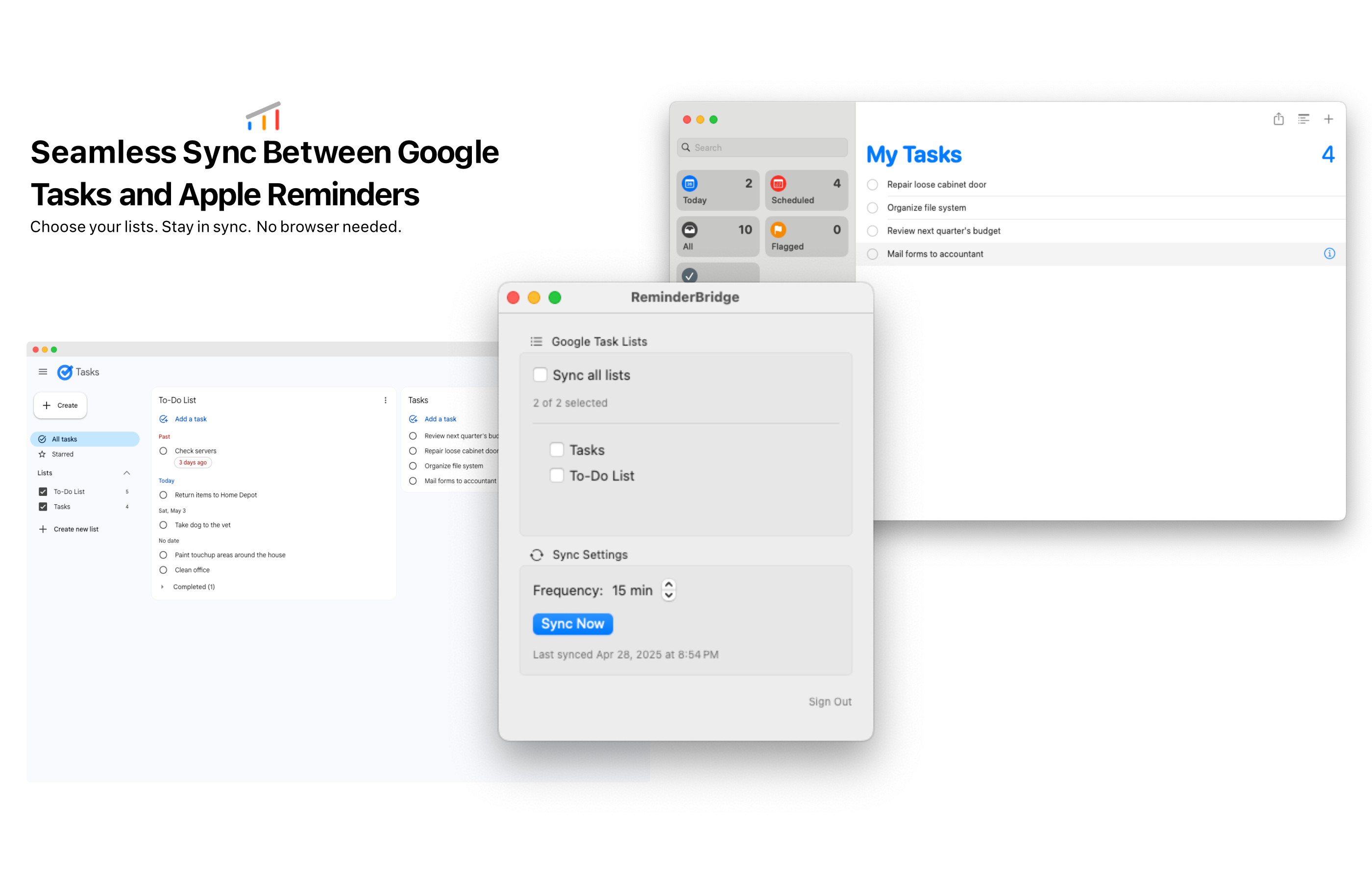
I built ReminderBridge for the mixed workflow. It is a macOS application that connects selected Google Tasks and Apple Reminders lists. Lists can originate on either platform, although a connected list's origin cannot be changed later.
ReminderBridge currently synchronizes:
- Task titles and notes
- Due dates
- Completion status
- Movement between connected lists
Synchronization runs on your Mac. You can set an interval from 15 to 60 minutes in 5-minute increments or use Sync Now. ReminderBridge must remain running for scheduled synchronization.
The limitations matter here. ReminderBridge does not provide real-time push sync. It does not synchronize subtasks, due times, reminders, or alarms. A recurring task remains controlled by the platform where it originated, and recurrence changes should be made there.
This means ReminderBridge does not turn Google Tasks into every feature of Apple Reminders. Siri, widgets, Shortcuts, Apple Watch, and Apple Calendar are Apple features that can act on the resulting reminders. They are not direct ReminderBridge integrations, and not every Apple-only field has a Google Tasks equivalent.
Read the documentation for supported synchronization behavior and known limitations before deciding if that tradeoff works for you.
Which One Should You Choose?
Choose Apple Reminders if you want a native Apple task manager and expect to use features such as Siri, location reminders, tags, Smart Lists, or shared Apple lists.
Choose Google Tasks if your work centers on Gmail, Google Calendar, Google Workspace, or Android, and its simpler organization model covers what you need.
Use both only when you have a concrete reason. For example, you may want Google Tasks for an Android phone and Google Workspace, but Apple Reminders while working on a Mac. In that case, decide which fields you depend on and whether scheduled synchronization is acceptable before adding a bridge.
Frequently Asked Questions
Is Apple Reminders better than Google Tasks?
Apple Reminders has more organization and notification features, but that does not make it the better choice for every workflow. Google Tasks is often more convenient for people who work in Gmail, Google Calendar, Google Workspace, or Android.
Can I use Google Tasks on an iPhone?
Yes. Google provides a Google Tasks app for iPhone and iPad. You can use it independently of Apple Reminders.
Can Google Tasks appear in Apple Reminders?
There is no built-in Apple or Google setting that connects the two systems. A third-party application such as ReminderBridge can synchronize supported task information between selected lists.
Does Google Tasks have a Mac app?
Google's current documentation directs computer users to Google Tasks in Google Calendar and the side panel in Google Workspace applications. It does not document a standalone native Google Tasks app for macOS.
Will every Apple Reminders field sync to Google Tasks?
No. The two systems use different data models. With ReminderBridge, due times, reminders, alarms, subtasks, and recurrence rules do not synchronize. Check the product documentation if any of those fields are central to your workflow.
Next Step
If you are still deciding how to access Google Tasks at your desk, start with the Google Tasks for Mac guide.
If you already know that you need both systems, evaluate ReminderBridge as a Google Tasks and Apple Reminders sync alternative and review its documented limitations before purchasing.