My practical setup for using Google Tasks on Android and Apple Reminders on a Mac, including where ReminderBridge fits and what it does not sync.
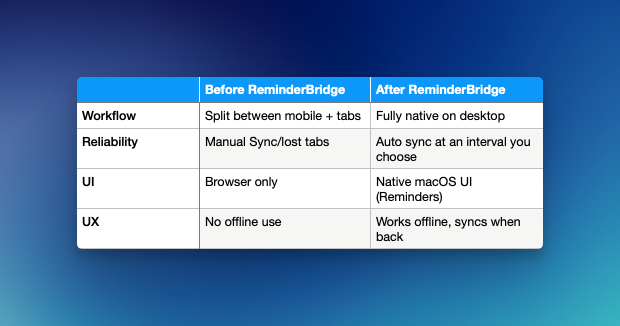
I built ReminderBridge because my devices did not fit neatly into one ecosystem. I use an Android phone away from my desk, but I prefer working on a Mac with native desktop applications. Google Tasks made sense on my phone and inside Google Workspace. Apple Reminders was more convenient on macOS.
The result was two useful task systems with no built-in connection between them.
Here is how I use ReminderBridge to connect the parts of that workflow that map cleanly, along with the limitations I work around.
This short overview shows the Android and Mac sides of that workflow.
My Setup
As of July 2026, my Macs are running macOS Tahoe 26.5.2. My main computer is a Mac mini. I also use a MacBook Air when I am away from my desk and a Pixel phone when I am mobile.
The split between platforms is:
- Google Tasks on Android
- Apple Reminders on macOS
- Google Calendar as my main calendar service
- Apple Calendar as the desktop calendar interface
- ReminderBridge running on my primary Mac
I keep ReminderBridge running after closing its main window because scheduled synchronization only works while the application is running. My selected lists synchronize on an interval, and I use Sync Now when I need to start a synchronization attempt without waiting.
Why I Use Google Tasks on My Phone
Android is the better fit for how I use a phone. Google Tasks gives me a direct mobile application, and the same task lists are available in Google Calendar and the side panels of Gmail and other Google Workspace applications.
Most mobile task management is quick capture:
- Add something before I forget it
- Check what is due
- Mark a task complete
- Move a task to another list
Google Tasks handles those jobs without requiring much maintenance. I do not try to turn it into project-management software.
Why I Use Apple Reminders on My Mac
At my desk, I want tasks in a dedicated Mac application rather than another browser tab. Apple Reminders gives me a native window, keyboard access, and the surrounding Apple features I already use.
Apple Reminders also has more organization options than Google Tasks, including tags, Smart Lists, sections, flags, and priorities. I do not expect all of those fields to synchronize to Google because the two systems have different data models. They remain useful for the Mac side of my workflow.
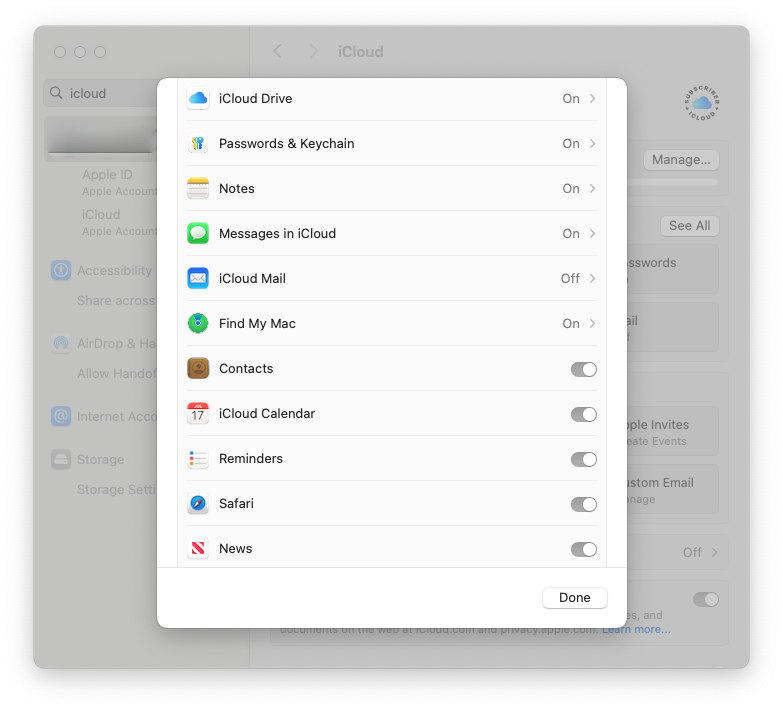
iCloud keeps Apple Reminders available on my Macs that use the same Apple account. ReminderBridge handles the separate job of connecting selected Reminders lists with Google Tasks.
The Lists I Connect
I keep the task structure intentionally small.
Daily Tasks
These are items that need attention soon. They usually have a due date and a clear next action.
Examples include:
- Review a product issue
- Send a follow-up email
- Prepare a release note
- Pay a bill
General Tasks
This list holds work that matters but does not have to happen today. It includes ideas, maintenance, and tasks I want to revisit when I have capacity.
I avoid creating a separate list for every project. Software projects still belong in Jira, and collaborative work may belong in Trello or another shared system. ReminderBridge is for personal execution tasks, not a replacement for those tools.
Lists can originate in either Google Tasks or Apple Reminders. Once a list is connected, its origin cannot be changed. I decide where a list should originate before connecting it.
What ReminderBridge Synchronizes in My Workflow
For these lists, I depend on the fields that have useful counterparts on both platforms:
- Title
- Notes
- Due date
- Completion status
- Movement between connected lists
This covers most of my daily tasks. I can create or complete one on my phone, then work with the synchronized reminder on my Mac.
The synchronization is scheduled or manual, not real-time. ReminderBridge supports intervals from 15 to 60 minutes in 5-minute increments. That is suitable for my workflow because these are tasks, not live messages.
If both copies change before the next synchronization, ReminderBridge uses the latest whole-task change. It does not merge individual fields. I avoid editing the same task on both platforms in quick succession.
What I Do Not Expect to Synchronize
The limitations shape how I use the system.
ReminderBridge does not synchronize:
- Due times
- Reminder notifications or alarms
- Subtasks
- Recurrence rules
I use due dates for connected tasks and avoid depending on a due time crossing between platforms. If a task needs a specific notification, I configure that on the platform where I expect to receive it.
For repeating tasks, the platform where the task originated controls the recurrence. I edit the recurrence at its source. ReminderBridge synchronizes the core task information, but it does not copy the recurrence rule itself.
Apple Reminders priority can be represented in Google Tasks by adding an asterisk to the Google Task title. Google Tasks does not have an equivalent priority field. This is a one-way representation of the Apple priority, not a general priority system shared by both applications.
The complete field behavior is documented in Using ReminderBridge and Known Limitations.
How Tasks Fit With the Rest of My Tools
I separate planning, project tracking, calendars, and immediate tasks.
- UpNote holds notes, goals, and higher-level planning.
- Jira tracks software projects and development work.
- Trello handles some collaborative projects.
- Google Calendar is the main service for events and calendar subscriptions.
- Apple Calendar displays my Google calendars on macOS through the Google account configured on the Mac.
- Apple Reminders and Google Tasks hold the concrete personal actions I need to complete.
This separation prevents my task list from becoming a duplicate project tracker. A Jira issue can produce a personal follow-up task, but the issue history and collaboration stay in Jira.
Where Apple Features Fit
Once a supported Google Task has synchronized into Apple Reminders, I can work with that reminder through Apple's applications and services. Depending on the reminder, that may include Siri, widgets, Shortcuts, Apple Watch, or Apple Calendar.
Those are downstream Apple Reminders behaviors. They are not direct ReminderBridge integrations, and Apple-only information does not necessarily map back to Google Tasks.
That distinction is important. ReminderBridge connects supported task information. It does not make the two platforms identical.
Who This Workflow Is For
This setup works well when:
- You use Android or Google Workspace but prefer Apple Reminders on a Mac
- The documented synchronized fields cover your everyday tasks
- A scheduled or manual synchronization interval is acceptable
- You are willing to keep recurrence and platform-specific notifications at their source
It is probably not the right setup if you need real-time push updates, synchronized subtasks, synchronized due times, or identical behavior on both platforms.
If you only need Google Tasks in a browser, Google's own interfaces may be simpler. The Google Tasks for Mac guide explains those options. If you are still choosing a primary task system, read Apple Reminders vs Google Tasks first.
If you are first trying to determine whether the systems can connect, start with Can Google Tasks Sync With Apple Reminders?.
Next Step
My workflow is one example, not a required setup. Start by identifying which lists and fields you actually need on both platforms.
If the documented tradeoffs fit, review how ReminderBridge connects Google Tasks and Apple Reminders before purchasing.