
Google Tasks works on a Mac through Google Calendar and Workspace side panels. Here are the practical options, including using Apple Reminders with ReminderBridge.
You can use Google Tasks on a Mac, but Google does not document a standalone native Google Tasks app for macOS. Its official computer experience runs through Google Calendar or the side panel in products such as Gmail, Calendar, Chat, and Drive.
That may be all you need. If you want a separate window, you can use a third-party Google Tasks client. If you want your supported Google Tasks information available through Apple Reminders, ReminderBridge provides another option.
This guide explains the practical differences so you can choose the approach that fits how you work.
Is There a Google Tasks App for Mac?
Google provides Google Tasks apps for Android and iOS. On a computer, Google's documentation directs users to Google Tasks in Calendar and to the Tasks side panel in Google Workspace products.
This distinction matters. Google Tasks works on macOS through your browser, but it is not a standalone native Mac application in the same sense as Apple Reminders.
You have three practical approaches:
- Use Google's browser interfaces.
- Install a third-party desktop client.
- Connect Google Tasks with Apple Reminders using ReminderBridge.
Option 1: Use Google Tasks in Your Browser
The official option is the simplest place to start. It does not require another application or service.
Google Calendar
Google Calendar lets you create, view, edit, complete, and delete tasks. Tasks with dates can also appear directly on your calendar. Google now provides a fuller Tasks view inside Calendar, so you are not limited to the narrow side panel.
If the older reminder terminology is confusing, Google Tasks vs Google Calendar Reminders explains what changed and which system owns each kind of item.
Open Google Calendar, then select Tasks near the top-right corner. You can also create a task by selecting an open time on the calendar and choosing Task.
This works well when you already keep Calendar open or want dated tasks beside your schedule.
Google Workspace Side Panel
Google Tasks is also available in the side panel in:
- Gmail
- Google Calendar
- Google Chat
- Google Drive
- Google Docs, Sheets, and Slides
The side panel is useful when tasks start as email or document follow-up. For example, Gmail can turn an email into a Google Task and retain a link to the message. Google's side-panel instructions cover the supported products and controls.
The tradeoff is straightforward: your task list remains part of a browser-based Google Workspace screen. That is not necessarily a problem. I find it less convenient when I want to leave Tasks visible beside other applications or work primarily in native Mac apps.
Option 2: Use a Third-Party Google Tasks Client
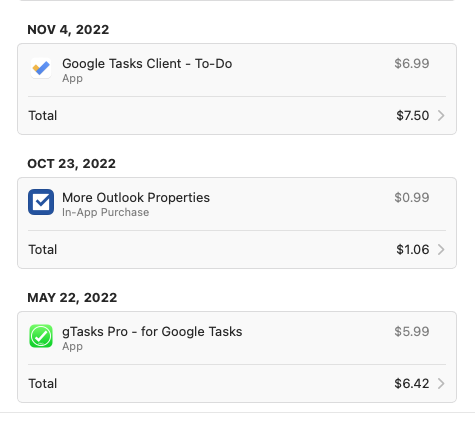
A third-party client can give Google Tasks its own window and Dock icon. Some clients stay close to Google's interface, while others add their own organization, notification, or menu-bar features.
I have used dedicated Google Tasks clients before. They solved the browser-tab problem, but I still felt like I was working in a separate Google interface. That may be exactly what you want if you prefer to keep Google Tasks unchanged and do not use Apple Reminders.
Before installing one, check:
- Whether it is a native client or a web wrapper
- Which Google Tasks fields it supports
- Whether your Google account connects directly or through the developer's service
- Its privacy policy
- Whether it requires a subscription
- How recently it has been updated
Avoid choosing based only on a screenshot. Account access, field support, and maintenance matter more over time.
Option 3: Use Google Tasks Through Apple Reminders
ReminderBridge is a Mac app I built for a different kind of desktop workflow. Instead of presenting another Google Tasks interface, it connects selected Google Tasks and Apple Reminders lists.
That lets you work with supported task information in Apple Reminders while continuing to use Google Tasks in Google's apps and services.
ReminderBridge currently supports:
- Task titles and notes
- Due dates, but not due times
- Completion status
- Moving tasks between connected lists
- Lists originating in Google Tasks or Apple Reminders
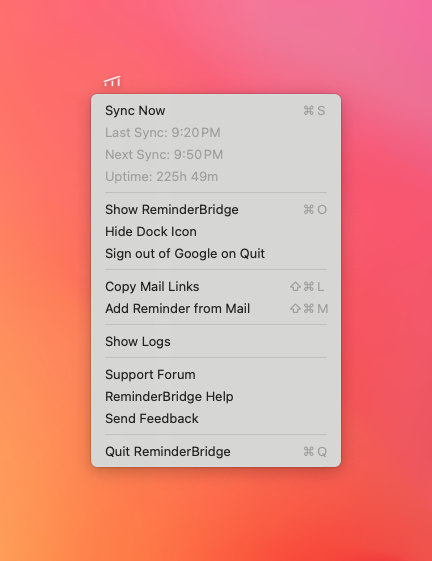
Synchronization runs on your Mac. You can choose an interval from 15 to 60 minutes in 5-minute increments or use Sync Now. The app must remain running for scheduled synchronization.
It is important to understand what ReminderBridge is not. It does not provide real-time push sync, and it does not synchronize subtasks, due times, reminders, or alarms. The originating platform controls recurring tasks, so recurring-task changes should be made at their source.
You can review the complete supported field behavior and known limitations before deciding whether this approach fits your workflow.
Which Google Tasks Mac Option Should You Choose?
Use Google Calendar or the Workspace side panel if:
- You are comfortable managing tasks in a browser
- Your tasks frequently come from Gmail, Calendar, or Docs
- You do not want another application
Consider a third-party Google Tasks client if:
- You want a dedicated window
- You want to keep the Google Tasks interface and data model
- The client's account access and privacy model meet your requirements
Consider ReminderBridge if:
- You already use Apple Reminders on your Mac
- You want selected Google Tasks available through that workflow
- Scheduled or manual synchronization is acceptable
- Its documented field support matches the way you use tasks
I use the third approach because Apple Reminders fits the way I work at a desk, while Google Tasks remains useful on Android and inside Google Workspace. I explain that setup in more detail in How I Use ReminderBridge.
Frequently Asked Questions
Can I download Google Tasks from the Mac App Store?
Google does not currently document an official standalone Google Tasks app for macOS. Its official computer instructions direct users to Tasks in Google Calendar and Workspace side panels.
Can I use Google Tasks without Gmail?
Yes. You can open and manage Google Tasks through Google Calendar in a browser. Gmail is one supported entry point, not a requirement for the task list itself.
Do Google Tasks appear in Google Calendar?
Tasks with dates can appear on Google Calendar. Google Calendar also provides a dedicated Tasks view and controls for creating and editing tasks.
Does ReminderBridge replace Google Tasks?
No. ReminderBridge connects supported information between selected Google Tasks and Apple Reminders lists. Google Tasks and Apple Reminders remain the task applications and data systems.
Next Step
If browser access already works for you, start with Google's official tools. If you prefer Apple Reminders on your Mac, review how ReminderBridge connects Google Tasks and Apple Reminders before purchasing.
For a feature-by-feature comparison of the two task systems, read Apple Reminders vs Google Tasks.