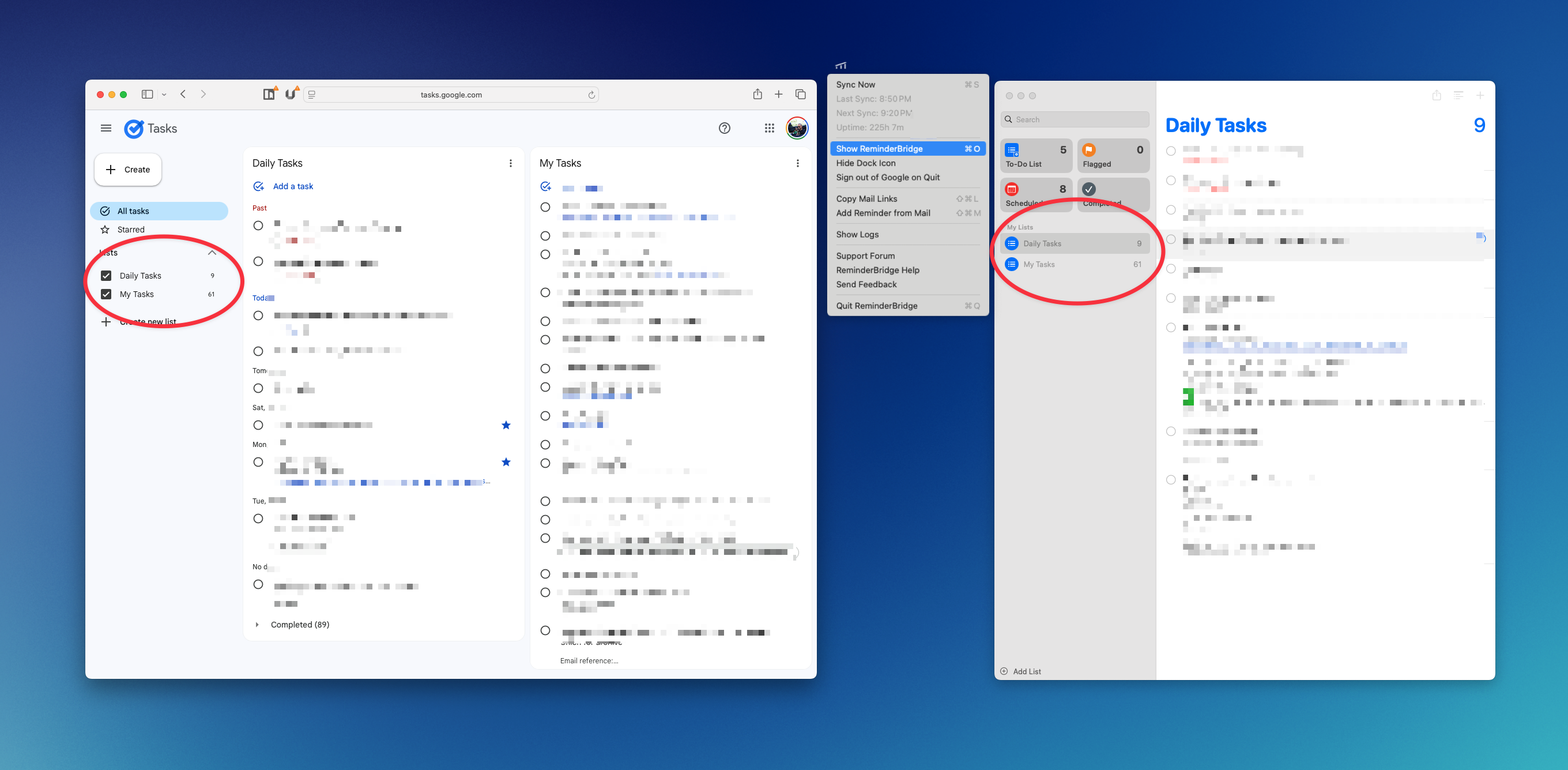
No native Google Tasks for desktop app? Here’s how to sync tasks to Apple Reminders and manage them natively on macOS with ReminderBridge.
Google Tasks offers a simple way of managing tasks, but it lacks an official Google Tasks for desktop app. On macOS, users are left juggling mobile interfaces, browser tabs, or makeshift web wrappers to manage their to-do lists.
This post walks you through the two common options—and why ReminderBridge offers a clean, native alternative for seamless task syncing.
The Problem
There is no official Google Tasks desktop app. If you want to access your tasks (Google) on a Mac, your options are usually:
- Keeping a tab open with Google Calendar
- Installing a web wrapper
- Using Chrome extensions
These are all compromises. They add clutter, require more context switching, and feel out of place on a clean macOS workflow.
Option A: Workarounds
Some common methods for using Google Tasks on desktop include:
1. Web Wrappers
Tools like Fluid or Nativefier can wrap the Google Tasks interface into a standalone app. It's better than a browser tab, but still not ideal:
- No offline support
- No system integration
- Still reliant on Chrome engine
2. Chrome Side Panel / Extensions
You can access Google Tasks through the Gmail/Calendar side panel, or try a Chrome extension. Downsides:
- Always tied to Chrome
- Poor multitasking
- Difficult to use across multiple devices
3. gTasks Pro - for Google Tasks and Google Tasks Client - To-Do
I have used both of them, and they are good tools if you just want to see your Google Tasks on the desktop without a browser. The one thing they did not do well is integrate into the OS. I found myself getting frustrated with still feeling like I was using a web wrapper. What I wanted was something more integrated with macOS and out of my way.
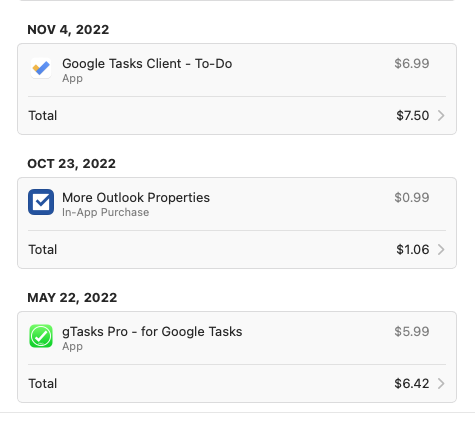
There are even paid subscription services that offer Google Tasks for desktop. While those tools may work well for many users, ReminderBridge provides a native macOS alternative with a one-time purchase—no ongoing fees.
Option B: ReminderBridge (Best Solution for macOS)
ReminderBridge syncs Google Tasks directly with Apple Reminders, giving you:
Experience
- ✓
Seamless Task Management
Experience two-way sync between Google Tasks and Apple Reminders. No more manual transfers or duplicate entries.
- ✓
Effortless Background Operation
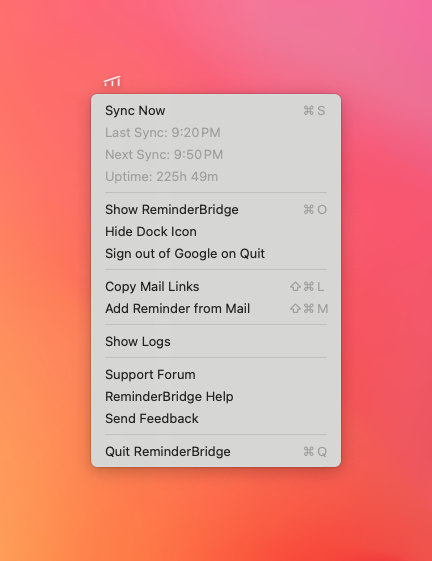
Runs quietly in your menu bar and syncs on a schedule or on-demand, without interrupting your workflow.
- ✓
Tailored Syncing Options
Sync only the lists you want. Customize your flow and avoid unnecessary clutter.
- ✓
Uncompromised Privacy
No third-party servers. Your data syncs directly between Apple and Google.
- ✓
Quick Access from the Menu Bar
Trigger syncs, view status, and even create reminders from Apple Mail.
- ✓
Enhanced Priority Management
Prefix a task with
*in Google Tasks to mark it high priority. ReminderBridge maps it directly in Apple Reminders. - ✓
Native macOS Integration
Works fully with the native Reminders app, unlike browser-based solutions.
Cross-Platform Compatibility
Mac + Google ecosystem? No problem. ReminderBridge makes them play nicely together.
No Hidden Costs
One-time purchase. No subscriptions. Full feature access.
Ready to Simplify Your Task Flow?
Try ReminderBridge on the Mac App Store and experience what true native task management with Google Tasks feels like.
Or visit the landing page to learn more.